
Every device your family owns, laptops, phones, tablets, game consoles, smart TVs, is a possible way in for an attacker. A personal cybersecurity checklist for families works through those devices and accounts one at a time so nothing gets missed. According to the FBI's Internet Crime Complaint Center (IC3), Americans reported more than $16.6 billion in losses to internet crime in 2024, and a meaningful share of that falls on households rather than businesses.
This checklist covers passwords, device setup, your home network, kids' safety, phishing, and ongoing identity monitoring, each one specific enough to act on today. Most steps take under 15 minutes and none require a technical background. For the broader security framework these recommendations draw from, see NIST's Cybersecurity Framework.
Quick Answer
A personal cybersecurity checklist for families covers five areas: unique passwords with multi-factor authentication on every account, basic security settings on every device, a hardened home router with a separate network for smart devices, privacy and parental controls for kids, and ongoing identity monitoring, including a credit freeze for any children in the household. Most items take 10 to 15 minutes and don't require technical expertise. Review the fast-moving items quarterly and run the full checklist once a year.
Key Takeaway
- Enable multi-factor authentication on email first, it's the account attackers use to reset everything else.
- Use a password manager so every account, including a kid's school login, has a unique password.
- Put smart TVs, cameras, and other IoT devices on a separate guest network from your computers.
- Freeze credit files for every minor in the household at Equifax, Experian, and TransUnion.
- Review the checklist quarterly and run the full version once a year or after a major life change.
The Scale of the Threat to U.S. Households
Weak or reused passwords are still the most common way attackers get into household accounts. The Cybersecurity and Infrastructure Security Agency (CISA), the federal agency that coordinates national cyber defense, recommends a long, randomly generated password for every account, one that exists nowhere else. A password manager makes that realistic without putting the burden on anyone's memory.
These tools generate, store, and auto-fill credentials across your family's devices, so a child's school portal, a banking app, and an email account each carry a distinct password. Multi-factor authentication (MFA) adds a second checkpoint: even if a password leaks in a breach, MFA stops the login unless the attacker also has your phone or authenticator app. Use an app like Google Authenticator or Microsoft Authenticator rather than SMS codes where the account allows it.
SIM-swapping attacks let criminals intercept text-based codes by hijacking a phone number, which is why our guide to SIM swap attack protection is worth a read if anyone in the family uses SMS codes for banking.
Password and Account Action Items
- Use a password manager to generate a unique password for every account
- Turn on MFA for email, banking, social media, and cloud storage
- Choose an authenticator app over SMS codes where the account allows it
- Create one strong, memorable passphrase for your password manager's master password
- Revoke access for apps and services nobody in the household uses anymore
How to Secure Every Family Device
Inventory every device
List every phone, laptop, tablet, smart TV, game console, and smart home gadget in the house. You can't protect what you haven't counted.
Turn on automatic updates
Enable automatic updates for operating systems and apps. Most successful attacks exploit a known flaw that already had a patch available.
Install security software on computers
Run reputable antivirus and anti-malware on Windows and macOS machines. On phones, only install apps from the official app store.
Turn on full-disk encryption
Activate BitLocker on Windows, FileVault on macOS, or the built-in encryption on your phone, so a lost or stolen device doesn't hand over your data.
Set up automatic backups
Back up on a 3-2-1 schedule, three copies, two kinds of media, one offsite, so ransomware or a hardware failure can't destroy your only copy.
Lock every screen
Require a PIN, passphrase, or biometric on every device. Set auto-lock to one or two minutes and turn off notifications that show content on the lock screen.
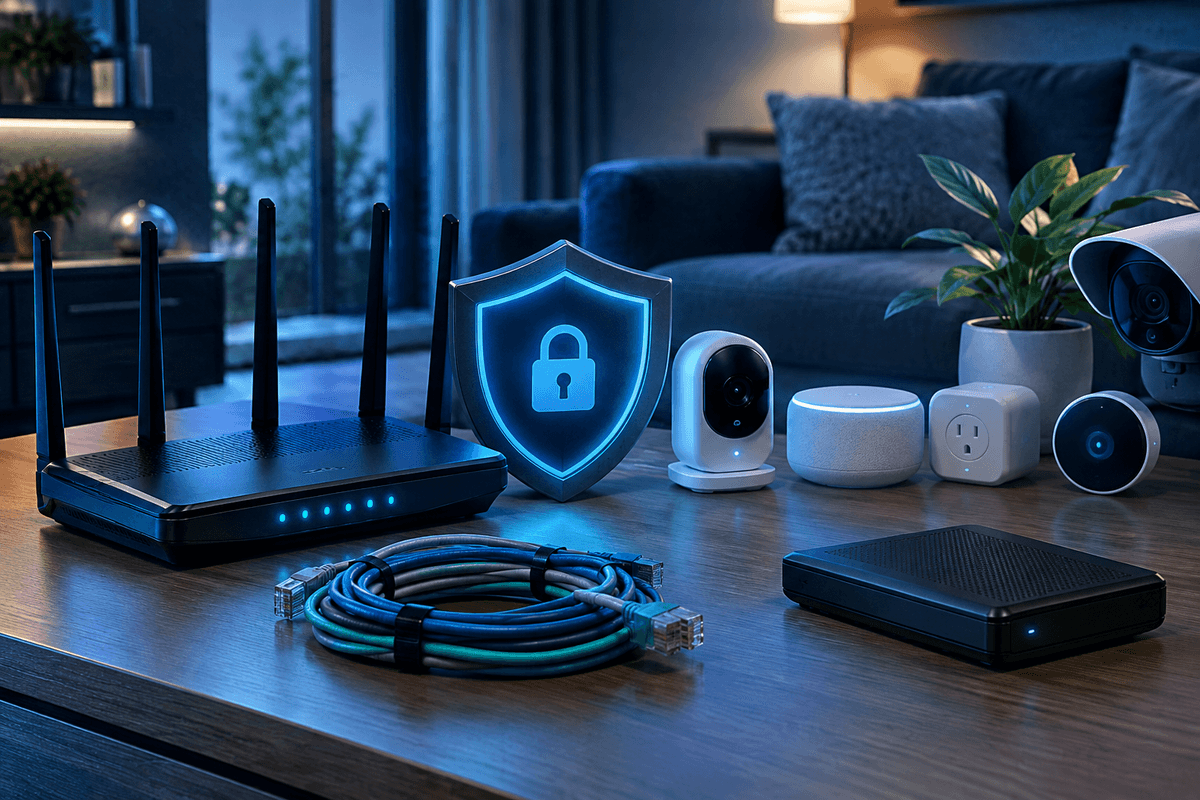
Your router is the gateway between every device in the house and the internet, so a weak one puts all of them at risk, including smart speakers, cameras, and thermostats that usually have no security settings of their own. Start by changing the router's default admin username and password; default credentials are public and routinely scanned for by attackers looking for exposed devices. That kind of scanning is how botnets such as the one covered in our Eyeoo1Bot Linux botnet writeup recruit home routers without the owner noticing.
Set your Wi-Fi to WPA3 encryption, or WPA2-AES if your router doesn't support WPA3 yet, and turn off WPS, which has known weaknesses. Rename the network to something that doesn't reveal your address or router model. Then create a separate guest network for IoT devices, smart TVs, cameras, and consoles, so a compromised smart plug can't reach your laptop or phone.
Home Network Action Items
- Change the router's default admin username and password right after setup
- Enable WPA3, or WPA2-AES at minimum, on your Wi-Fi
- Disable WPS and remote management unless you actively use them
- Set up a separate guest network for smart TVs, cameras, and other IoT devices
- Check the router manufacturer's site for firmware updates and install them
- Consider a free DNS filter such as Cloudflare 1.1.1.3 for Families to block malware sites household-wide
Children are often the least protected users in a household because they're more likely to click an unfamiliar link, share details with a stranger, or download an app without asking first. Start with the platforms they already use: tighten privacy settings on social media, gaming, and messaging apps, set accounts to private, turn off location sharing, and restrict who can send requests. Platform defaults aren't enough on their own, even on apps marketed as safe for kids.
A $400 million child privacy settlement involving TikTok, covered in our related article, is a reminder to check the settings yourself rather than assume a platform's marketing. Parental control software adds screen time schedules, alerts for concerning searches, and a review step before any app installs.
Technical controls only work until a determined teenager gets around them, so the longer-term protection is judgment. Teach kids not to share their address, school, or daily schedule with online strangers, to question whether an online persona is who it claims to be, and to tell a trusted adult immediately if something feels wrong.
What to Teach Kids
- Set social media, gaming, and messaging accounts to private where the platform allows it
- Turn off location sharing and restrict who can send friend or follow requests
- Use parental control software for screen time limits and app-download alerts
- Teach kids never to share their address, school, or daily schedule with online strangers
- Remind kids to tell a trusted adult immediately if something online feels wrong
Phishing is still the most common way attackers get a first foothold in a household. Attackers impersonate banks, delivery companies, government agencies, and retailers to get someone to click a bad link, enter a password on a fake site, or download malware disguised as a normal file. Phishing is a form of social engineering, manipulating a person rather than a system, which is why it works even against people who'd never fall for a technical exploit.
AI-generated phishing emails now mimic a legitimate company's tone and formatting closely enough that the old advice, look for typos, doesn't catch much anymore. Teach everyone in the house to watch for urgency ("your account will be suspended in 24 hours"), unexpected requests for a password or payment, a sender domain that doesn't quite match ("support@amazon-securitycenter.net" instead of "@amazon.com"), and shortened links that hide their real destination. Our guide to spotting a smishing text scam covers the text-message version of the same tactics.
Phishing by phone call, called vishing, follows the same script: your bank, the IRS, and the Social Security Administration will never demand payment by gift card or ask for your Social Security number on an unexpected call. The reliable rule across email, text, and phone is the same: never click a link or share information from a message you didn't expect, go to the organization's site directly, or call the number on your card or statement instead.
Family Security Protection Tiers
Password manager
- Standard
- Not in use
- Advanced
- Household-wide
Multi-factor authentication
- Standard
- Email and banking only
- Advanced
- All supported accounts
Antivirus / anti-malware
- Standard
- Basic built-in antivirus
- Advanced
- Installed on all computers
Router security
- Standard
- Default settings
- Advanced
- WPA3 plus guest IoT network
Parental controls
- Standard
- None
- Advanced
- Yes
Dark web monitoring
- Standard
- None
- Advanced
- None
Credit freeze for minors
- Standard
- None
- Advanced
- Yes
Ongoing monitoring
- Standard
- None
- Advanced
- None
| Feature | Standard | Advanced |
|---|---|---|
| Password manager | Not in use | Household-wide |
| Multi-factor authentication | Email and banking only | All supported accounts |
| Antivirus / anti-malware | Basic built-in antivirus | Installed on all computers |
| Router security | Default settings | WPA3 plus guest IoT network |
| Parental controls | None | Yes |
| Dark web monitoring | None | None |
| Credit freeze for minors | None | Yes |
| Ongoing monitoring | None | None |
Don't Overlook Your Children's Credit
Children under 18 usually have no credit history, which means identity thieves can open fraudulent accounts in a child's name for years before anyone notices. The Federal Trade Commission (FTC) recommends placing a credit freeze at all three major bureaus, Equifax, Experian, and TransUnion, for every child in the household. It's free, takes about 15 minutes per bureau, and can be lifted when your child applies for credit as a young adult.
Data breaches at retailers, healthcare providers, and financial institutions routinely expose household data, names, Social Security numbers, birth dates, and card numbers, to criminal marketplaces. You often don't find out until months later, when a fraudulent account turns up or a tax return gets rejected because someone already filed using your Social Security number. Pull your credit reports at AnnualCreditReport.com, the only federally authorized free credit report site, and look for accounts, inquiries, or addresses you don't recognize.
Families that have already dealt with identity fraud, or that keep a high public profile online, should go further. Place a security freeze at all three bureaus, it blocks new credit from being opened in your name and is free to place or lift, set up fraud alerts that require identity verification before new credit opens, and check your Social Security earnings record once a year to catch fraudulent employment under your number. For a broader framework on protecting your household's accounts and savings, see our financial security guide for individuals.
If grandparents or elderly parents are part of your household's orbit, our guide on protecting elderly parents from online scams and identity theft covers risks specific to that age group.
Identity Monitoring Action Items
- Pull free credit reports at AnnualCreditReport.com and check for unfamiliar accounts
- Place a security freeze at Equifax, Experian, and TransUnion if you've had identity fraud before
- Check your Social Security earnings record once a year at ssa.gov
- Use a separate email address just for banking and financial accounts
A personal cybersecurity checklist for families isn't a one-time project, it's a habit. Attackers look for the path of least resistance, and a household that keeps up basic hygiene across passwords, devices, network, kids' accounts, and identity monitoring is a much harder target than one relying on a single antivirus subscription. The schedule below keeps the checklist from going stale.
Your Household's Review Schedule
Tap each step as you finish it. Your progress is saved on this device.
0 of 7 done
Get Your Free Personal Security Review
Get a prioritized, no-cost walkthrough of your family's biggest security gaps from a Bellator Cyber Guard analyst.
Frequently Asked Questions
Enabling multi-factor authentication on email delivers the biggest single reduction in account compromise risk. Email is the recovery mechanism for nearly every other account, so if an attacker gets into your inbox, they can reset passwords for banking, social media, and cloud storage. Pair MFA with a password manager so every account also carries a unique password.
Run through the fast-moving items, updates, backup verification, account access, and monitoring alerts, at least quarterly. Complete the full checklist once a year, or after a major life event such as a new device, a child starting a new school, or a breach notification from a company you use.
macOS includes built-in protections like Gatekeeper and XProtect, but it isn't immune to malware, and reputable third-party software adds behavioral detection those tools lack. iPhones running current iOS with App Store-only apps carry lower malware risk, but phishing affects every platform equally regardless of device.
Change the password immediately from a device you trust, turn on MFA if it wasn't active, and review recent activity for unauthorized emails, purchases, or profile changes. Contact your bank if financial information was exposed, and file a report at IdentityTheft.gov if personal data was involved.
A VPN matters most on untrusted public Wi-Fi, airports, coffee shops, hotels, where traffic can be intercepted. On a home network with a properly secured router, a VPN adds less incremental protection. If anyone in the family regularly connects from public Wi-Fi, a reputable paid VPN is worth adding.
Yes. Equifax, Experian, and TransUnion all allow parents and guardians to freeze credit files for children under 16. The process requires proof of identity and guardianship, and placing the freeze is free. It prevents identity thieves from opening fraudulent accounts under your child's Social Security number, a type of fraud that often goes undetected for years.
Start with the concern that matters most
Make your accounts, devices, or family safer one clear step at a time
You do not need to change everything today. Choose the account, device, scam, or family concern that brought you here and fix the highest-impact opening first.
People also look for
Keep exploring Passwords & account security
Make passwords, password managers, MFA, and passkeys work together to reduce account takeover risk.
- Common question: password security best practicesApply current password best practicesUse long unique passwords, password managers, MFA, and passkeys where they make sense.
- Common question: NIST password manager guidanceRead the NIST password manager guidanceUnderstand how official guidance treats password managers and modern authentication.
- Common question: best password manager for personal useChoose a personal password managerCompare the practical features that make a password manager safer and easier to keep using.
- Common question: how to create a strong passwordCreate stronger, unique passwordsReplace short, reused passwords with a system that is both stronger and manageable.
- Common question: password security guideStart with the password security guideBuild a complete account-protection routine for work or home.