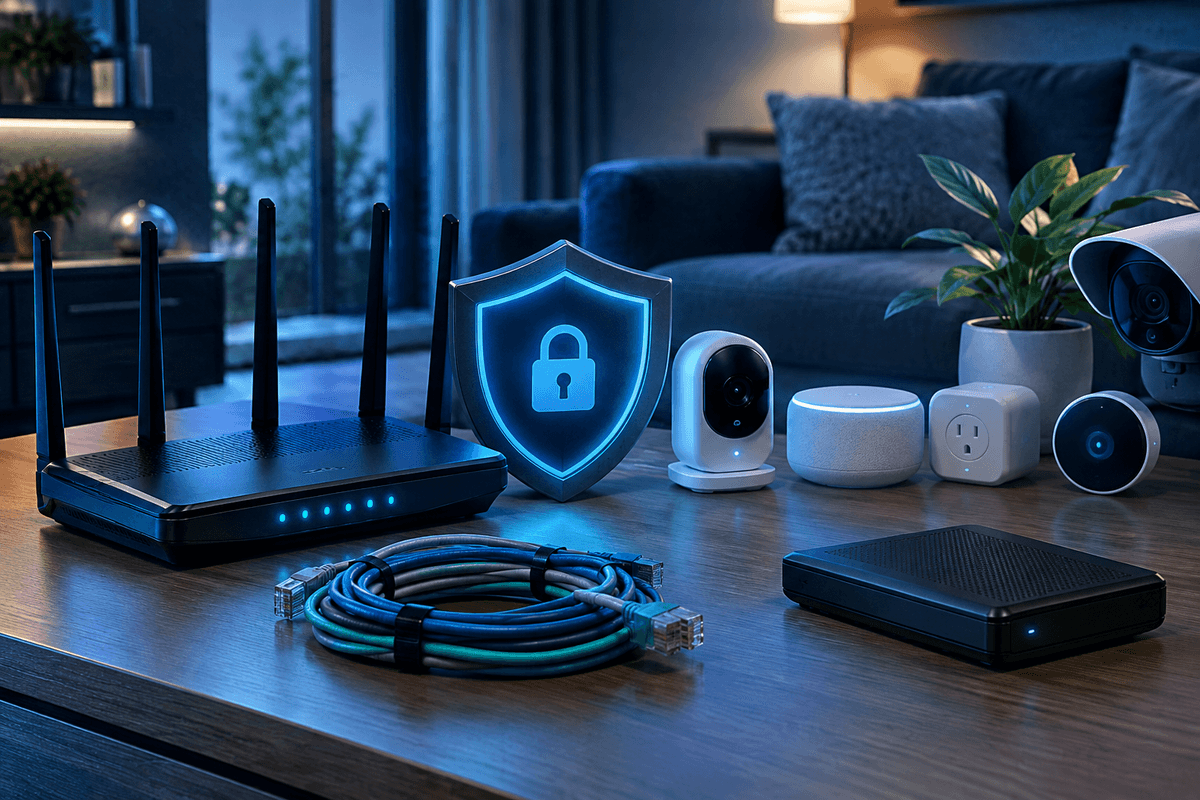
Free ransomware protection for a home computer starts with settings and habits you can use today: automatic updates, multi-factor authentication, a standard daily user account, Windows Controlled Folder Access, and a tested offline backup. These layers reduce different risks, but no single setting or security tool can promise to stop every ransomware attack.
The backup matters most for recovery. If a clean copy is disconnected when ransomware runs, the malware cannot encrypt that disconnected drive. For a fuller explanation of the threat, see our ransomware protection guide.
Quick Answer
Use automatic updates, unique passwords with MFA, a standard Windows account, Controlled Folder Access, and a 3-2-1 backup with one copy kept offline. These are free or built into many devices, except for the storage you choose for backups. If you suspect ransomware, disconnect the computer from the network first, then investigate and recover from a verified clean backup.
Key Takeaway
Prioritize recovery over detection alone: keep one backup disconnected, test restoring files every 90 days, protect email and cloud accounts with MFA, and install operating system and application updates promptly.
Ransomware reported to the FBI
Why home computers need more than antivirus
Home computers are often targeted through phishing, stolen passwords, unpatched software, unsafe downloads, and exposed remote access. The Verizon 2024 Data Breach Investigations Report identifies the human element, including social engineering and credential misuse, as a major factor in the incidents it analyzed.
According to the FBI Internet Crime Complaint Center's 2023 annual report, victims reported more than 2,825 ransomware complaints and over $59.6 million in related losses. Reported losses do not represent every incident, because some victims may not report an attack.
A paid security product can add protection, but it does not replace these basics. Start by reducing the ways malware can enter and by making recovery possible if it does.
Set up five free ransomware defenses
Turn on automatic updates
Enable automatic updates for your operating system, browser, and installed applications. Review software that does not update itself, especially document readers, browser extensions, and media tools. Our <a href="/learn/patch-management">patch management guide</a> explains why delayed updates create avoidable exposure.
Protect email and cloud accounts with MFA
Use a password manager to create a different password for every account, then enable MFA on email, cloud storage, and financial accounts. Email account protection is especially important because a compromised mailbox can reset passwords for other services.
Use a standard account for daily work
Browse, read email, and handle ordinary tasks from a non-administrator account. Keep a separate administrator account for installs and system changes, so malware has fewer privileges if it runs.
Enable Windows Controlled Folder Access
On Windows 10 or 11, open Windows Security, then Virus & threat protection, then Ransomware protection. Controlled Folder Access can block unapproved apps from changing files in protected folders. Review alerts and allow only applications you recognize and need.
Create an offline 3-2-1 backup
Keep three copies of important data, on two storage types, with one copy offline. Disconnect the external backup drive after the backup completes, and confirm you can restore files from it.
Cloud sync is not the same as a complete backup
A synced cloud folder can copy encrypted files into the cloud before you notice an infection. Use version history where available, but also keep a separate offline copy. Sophos reported in its 2024 State of Ransomware report that 94% of surveyed ransomware attacks targeted backup repositories.
Harden the two common entry points: email and browsing
Do not open an unexpected attachment or sign-in link just because it appears to come from someone you know. Verify unusual requests through a separate channel, such as a phone call or a newly composed message. See our guide to social engineering for common manipulation tactics.
Use a current browser with automatic updates enabled, remove extensions you no longer use, and avoid pirated software or software installers from untrusted sites. Do not override Office macro warnings for files downloaded from the internet unless you have independently confirmed why the file needs macros.
Disable Remote Desktop if you do not use it. If remote access is necessary, avoid exposing a computer directly to the internet and protect the account with a unique password and MFA where supported.
Home ransomware protection checklist
- Automatic updates are enabled for my operating system, browser, and installed applications.
- My email, cloud storage, and financial accounts use unique passwords and MFA.
- I use a standard account for daily work instead of an administrator account.
- I have three copies of important files, including one disconnected backup.
- I know how to restore a sample of files from my backup.
- I verify unexpected attachments and sign-in requests before opening them.
What to do in the first 15 minutes of suspected ransomware
Disconnect the affected computer from Wi-Fi or unplug its network cable as soon as you suspect ransomware. This can limit access to shared folders, other devices, and cloud-synced data. Do not connect a backup drive to the affected computer.
Use a separate, clean device to check the No More Ransom decryptor resources. Photograph or save the ransom note, record when you noticed the problem, and note the affected folders and file extensions.
Report the incident to FBI IC3. If you have a verified offline backup, recover only after the affected device has been cleaned or rebuilt from known-good installation media. The NIST incident response guide provides a useful framework for documenting and handling security incidents.
What free protections can do
- Automatic updates can close known software weaknesses.
- MFA can reduce the damage from a stolen password.
- Controlled Folder Access can help stop unauthorized changes to protected Windows folders.
- An offline backup gives you a recovery path after an incident.
What they cannot do alone
- Free settings still require ongoing attention and periodic testing.
- Cloud synchronization alone can copy encrypted files.
- A standard account does not stop every malicious program.
- Recovery depends on having a clean, recent backup and knowing how to restore it.
When to consider managed endpoint protection
For a home-based professional who handles client records or connects to a business environment, free controls may not be enough on their own. The practical question is whether someone is watching endpoint alerts, confirming backups, and helping contain an incident when you are unavailable.
Bellator Cyber Guard's Bellator Shield is a managed endpoint detection and response service priced at $19 per computer per month. For readers who also need remote monitoring and Ransomware Rollback®Bellator Core is $33 per computer per month. These services can add managed coverage, but they should sit alongside MFA, updates, and tested backups, not replace them.
Talk with a cybersecurity expert
Discuss the right ransomware recovery and endpoint protection approach for the computers and data you need to protect.
Frequently Asked Questions
Restore representative files at least every 90 days. An occasional larger recovery test can also confirm that your backup process, storage, and instructions work when you need them.
No. Cloud version history can help, but encrypted files may sync before you notice the infection. Keep a separate offline copy as part of a 3-2-1 backup plan.
The FBI and CISA generally discourage payment because it does not guarantee recovery and can fund further criminal activity. Check No More Ransom for an available decryptor, preserve evidence, report the incident, and seek qualified help before making a decision.
It can affect accessible shared folders, network storage, and other reachable devices. Disconnecting a suspected infected computer promptly and separating work systems from household devices can reduce exposure.
Start with the concern that matters most
Make your accounts, devices, or family safer one clear step at a time
You do not need to change everything today. Choose the account, device, scam, or family concern that brought you here and fix the highest-impact opening first.
People also look for
Keep exploring Passwords & account security
Make passwords, password managers, MFA, and passkeys work together to reduce account takeover risk.
- Common question: password security best practicesApply current password best practicesUse long unique passwords, password managers, MFA, and passkeys where they make sense.
- Common question: NIST password manager guidanceRead the NIST password manager guidanceUnderstand how official guidance treats password managers and modern authentication.
- Common question: best password manager for personal useChoose a personal password managerCompare the practical features that make a password manager safer and easier to keep using.
- Common question: how to create a strong passwordCreate stronger, unique passwordsReplace short, reused passwords with a system that is both stronger and manageable.
- Common question: password security guideStart with the password security guideBuild a complete account-protection routine for work or home.