To use the internet safely in 2026, protect your accounts first, pause before acting on unexpected messages, keep your devices updated, and limit what you share. You do not need to become a security expert, but you do need a few repeatable habits that make a stolen password, convincing phishing message, or lost device less likely to turn into an account takeover.
Online safety is not one setting you switch on. It is a set of layers: unique passwords, multi-factor authentication, software updates, cautious browsing, secure backups, and a plan for responding quickly when something looks wrong.
Quick Answer
Use the internet safely by using a password manager and unique passwords, turning on multi-factor authentication, updating devices and apps promptly, and verifying unexpected links or requests through a trusted channel. Avoid entering sensitive information after following an unsolicited link, and review important accounts regularly for unfamiliar activity.
No single tool can guarantee safety, but these habits reduce the chance that one mistake becomes a larger identity or financial problem.
Your internet safety setup steps
Tap each step as you finish it. Your progress is saved on this device.
0 of 5 done
1. Secure your email account before anything else
Your primary email account is often the recovery key for everything else. If someone gains control of it, they may be able to reset passwords for financial accounts, shopping accounts, cloud storage, and social media.
Use a long, unique password stored in a password manager, then enable multi-factor authentication, or MFA. Multi-factor authentication requires a second proof of identity, such as an authenticator-app code, security key, or approval prompt, in addition to your password. When available, an authenticator app or hardware security key generally avoids some of the risks associated with text-message codes.
Check the account's recovery email address, recovery phone number, forwarding rules, and signed-in devices. Remove anything you do not recognize. The Cybersecurity and Infrastructure Security Agency recommends MFA because a password alone can be guessed, reused after a data exposure, or obtained through a deceptive message.
Use unique passwords, not clever variations
Changing Summer2026! to Summer2026!! does not create a useful boundary between accounts. A password manager can generate and store a distinct long password for every service. If one site has an exposure, that separation helps keep the same password from working elsewhere. For a deeper account-protection checklist, read how to protect your digital identity.
Why basic online safety habits matter
2. Treat unexpected messages as unverified until you check them
Phishing is a deceptive message designed to get you to reveal information, open a harmful attachment, install software, or send money. It can arrive by email, text message, social media, a search ad, or a phone call that follows an earlier message.
Do not judge a message only by its logo, grammar, or sender display name. Instead, ask what it wants you to do and whether there is a safer way to verify it. If a bank, delivery company, employer, school, or family member appears to need something urgently, open the official app, type the known website address yourself, or call a known number. Do not use the link or number in the unexpected message.
- Be cautious when a message demands immediate payment, a login, a code, or a document download.
- Never share a one-time MFA code with someone who contacted you unexpectedly.
- Inspect a website address carefully before entering a password or payment information.
- Confirm unusual requests through a separate channel, especially requests involving money, gift cards, payroll, or account changes.
Learn the common warning signs in our guide on how to spot phishing emails. The FBI's 2024 Internet Crime Report also explains why reported loss totals should be read as reports received, not as a count of every incident that occurred.
MythA message is safe if it has a familiar company logo.
A message is safe if it has a familiar company logo.
A logo and a convincing sender name can be copied. Verify the destination address and use a known website or app for sensitive actions.
MythPrivate browsing makes me anonymous and protected.
Private browsing makes me anonymous and protected.
Private browsing mainly limits local browser history and cookies after a session. It does not replace account security, device updates, or careful choices about what you enter online.
MythI only need to update my computer when it becomes slow.
I only need to update my computer when it becomes slow.
Updates often fix security weaknesses. Delaying them can leave a device exposed to known issues that attackers may already understand.
3. Keep browsers, phones, apps, and routers updated
Software updates often include fixes for security weaknesses that could allow an attacker to take advantage of an outdated device or application. Enable automatic updates where practical for your operating system, browser, phone, office software, and security software. Restart when the update requires it.
Pay particular attention to your browser. It handles logins, documents, downloads, saved payment information, and many daily business tasks. Remove browser extensions you no longer use, and install extensions only from official stores after reviewing who publishes them and what permissions they request.
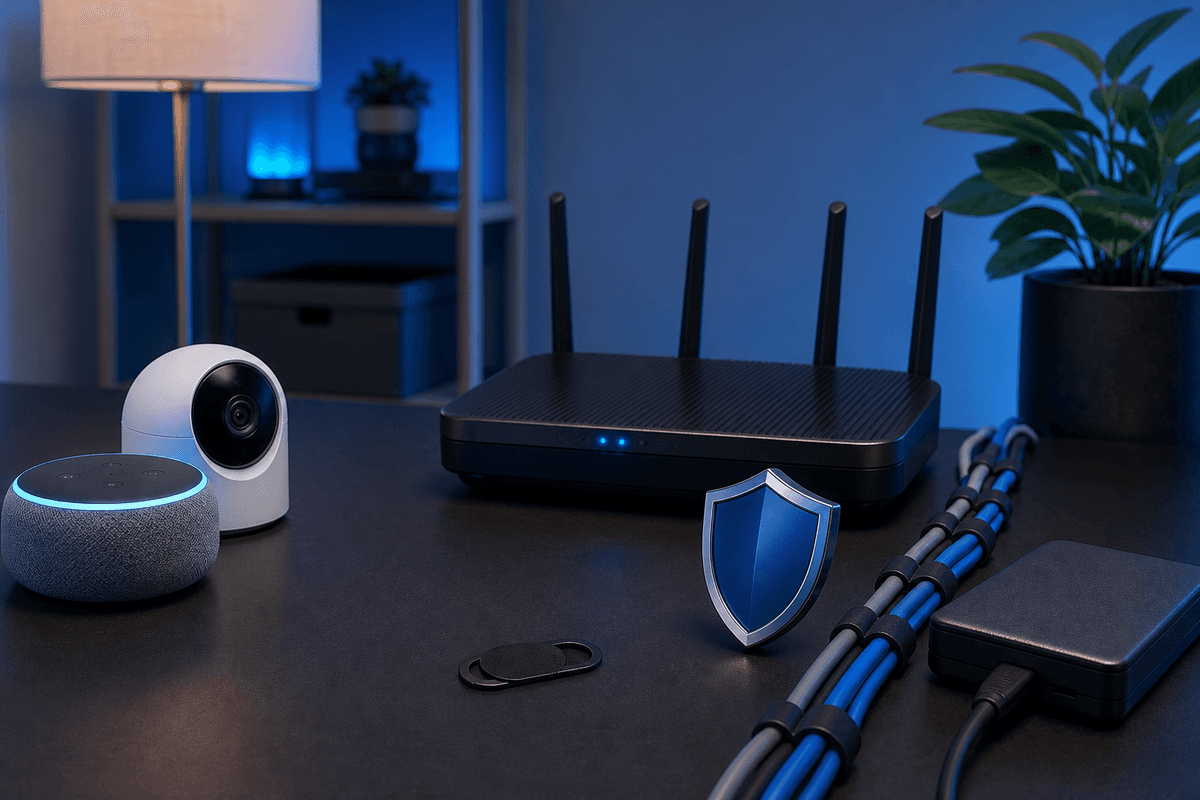
Your home router also deserves attention. Change its default administrator password, use WPA2 or WPA3 encryption, install vendor firmware updates when available, and retire equipment that no longer receives security support. The CISA update guidance recommends keeping software current because attackers can use known vulnerabilities against unpatched systems.
Use security software as one layer, not your only layer
Endpoint security is software that watches for suspicious behavior and harmful files on a computer or phone. It can reduce risk, but it cannot reliably correct a bad payment decision, a voluntarily shared password, or a compromised account with weak recovery settings. Pair it with backups, MFA, and cautious verification.
4. Browse and use public Wi-Fi with a smaller trust boundary
Public Wi-Fi is convenient, but you should assume the network is not under your control. Avoid handling highly sensitive work on public Wi-Fi when you can wait for a trusted connection. If you must connect, use websites that show HTTPS, keep sharing features turned off, and do not accept unexpected certificate warnings or software prompts.
For small-business owners and staff, public-network use is also a policy issue. A personal laptop used to access client portals, tax documents, healthcare systems, or business email should have screen lock, device updates, MFA, and endpoint protection in place. Do not assume a coffee shop network provides those controls for you.
Our guide on how to protect yourself on public wifi covers practical steps, including how to recognize risky connection prompts. If children use shared devicesinternet parental controls can help you create age-appropriate boundaries, but they should complement conversation and supervision rather than replace them.
Habits that reduce online risk
- Using a password manager to keep important account passwords unique
- Opening a trusted app or typing a known web address to verify a request
- Applying updates promptly and restarting when required
- Reviewing bank, email, and cloud-account alerts for unfamiliar activity
Shortcuts that create avoidable exposure
- Reusing a favorite password across email, shopping, and financial accounts
- Signing in after following a link in an unexpected message
- Postponing updates indefinitely because a device still appears to work
- Sharing one-time codes or approving a login prompt you did not initiate
5. Share less data and review your accounts regularly
Safe browsing includes deciding what not to publish. Your birthday, address, school, employer, travel plans, family names, and pet names can help criminals make a message seem credible or answer weak account-recovery questions. Review social-media privacy settings and remove public details that do not need to be public.
Use account alerts for bank transactions, password changes, new logins, and large purchases. Review statements and credit reports on a regular schedule. If you think an account may be compromised, change its password from a known-clean device, end unfamiliar sessions, review recovery settings, contact the provider through a verified channel, and preserve relevant messages or transaction records.
Old account data can remain useful to criminals long after you stop using a service. Dark web monitoring what it is and why you need it explains what exposure alerts can and cannot tell you. An alert is a reason to investigate and update affected credentials, not proof that someone has entered every account associated with an email address.
Important
If someone asks for a password, one-time verification code, remote access to your device, or an immediate payment, stop and verify independently. Legitimate organizations may use security checks, but an unexpected request for these items should be treated as unverified until you contact the organization through a trusted method.
6. Make a simple recovery plan before you need it
Good internet safety includes recovery. Keep a backup of irreplaceable photos, documents, and business files separate from your everyday device, and test that you can restore a file. Record where to report fraud for your bank, credit card issuer, email provider, mobile carrier, and key business systems.
For a household, decide who should be contacted if a parent, child, or partner receives a suspicious message. For a small office, document who can reset accounts, approve payments, contact vendors, and notify affected clients. This is the same layered principle described in defense in depth cybersecurity strategy explained: one missed control should not be the only thing standing between a routine mistake and a major problem.
If you handle client information or regulated data, personal habits are necessary but may not be enough. Your organization may need documented access controls, security procedures, vendor oversight, incident-response steps, and advice from qualified compliance or legal professionals. Security measures can reduce risk and support required processes, but legal questions should go to your counsel.
Key Takeaway
The safest routine is simple: use unique passwords and MFA, verify unexpected requests outside the message, update promptly, and act quickly on unfamiliar account activity. Consistency matters more than finding a single perfect security tool.
Get Your Free Personal Security Review
Get plain-language help choosing practical protections for your devices, accounts, and online habits. No pressure.
Frequently Asked Questions
Use a password manager to generate a separate long password for each account. Protect the password manager with a strong primary password and MFA, then prioritize changing reused passwords on email, financial, shopping, and cloud-storage accounts.
HTTPS helps protect the connection between your browser and that website, but it does not make every network prompt, device, or website trustworthy. Use public Wi-Fi cautiously, avoid sensitive tasks when possible, and verify the website address before signing in.
Do not enter credentials or payment information. Close the page, run your normal security checks, and change a password immediately if you entered it. Review your account sessions and recovery settings, then contact the affected provider using a verified website or phone number if you see suspicious activity.
Security software can help detect harmful files and suspicious activity, but it cannot guarantee protection from every threat or undo information you voluntarily provide to a convincing impostor. Use it alongside MFA, updates, backups, and careful verification.
Start with the concern that matters most
Make your accounts, devices, or family safer one clear step at a time
You do not need to change everything today. Choose the account, device, scam, or family concern that brought you here and fix the highest-impact opening first.
People also look for
Keep exploring Passwords & account security
Make passwords, password managers, MFA, and passkeys work together to reduce account takeover risk.
- Common question: password security best practicesApply current password best practicesUse long unique passwords, password managers, MFA, and passkeys where they make sense.
- Common question: NIST password manager guidanceRead the NIST password manager guidanceUnderstand how official guidance treats password managers and modern authentication.
- Common question: best password manager for personal useChoose a personal password managerCompare the practical features that make a password manager safer and easier to keep using.
- Common question: how to create a strong passwordCreate stronger, unique passwordsReplace short, reused passwords with a system that is both stronger and manageable.
- Common question: password security guideStart with the password security guideBuild a complete account-protection routine for work or home.