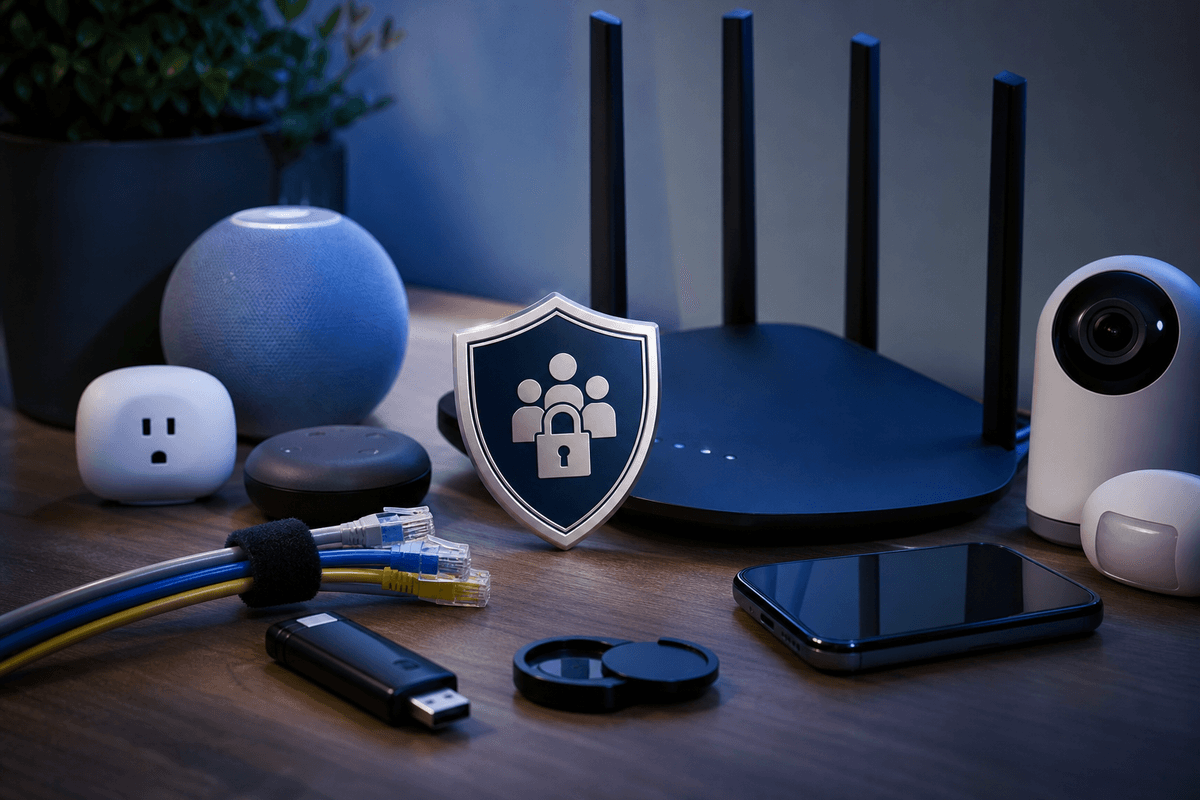
Internet parental controls work best when you use layers, not one app. Start with DNS filtering on your home router, add the built-in controls on each phone, tablet, computer, and game console, then use clear family rules and regular reviews. Filters reduce exposure to inappropriate sites, but they cannot reliably catch every harmful video, message, fake account, or new app.
This guide explains a practical setup for family internet security, including what router controls cover, what device settings add, and how to respond when something gets through. For broader account and identity protection at home, see our family financial security guide.
Quick Answer
Set a family-safe DNS service on your router first, because it applies to devices using your home WiFi. Then enable Apple Screen Time, Google Family Link, or Microsoft Family Safety on each device, lock social and gaming accounts to private, and review settings regularly. Add an alert-based monitoring tool only if its reporting addresses a gap you have identified.
Key Takeaway
Use three layers: router DNS filtering for home-network coverage, device controls for cellular and school WiFi, and family conversations for risks technology cannot classify. Keep parental passcodes separate from device passcodes, turn off location sharing for child accounts, and treat quarterly reviews as part of the setup.
What parental controls can and cannot do
Router-level DNS filtering blocks requests to known domains before a device connects to them. Cloudflare for Families and OpenDNS FamilyShield are examples of family-safe DNS services that can cover many devices on one home network. This is a useful starting layer, but it does not follow a phone using cellular data or another WiFi network.
Device controls add app limits, content ratings, downtime, purchase restrictions, and communication settings. Apple Screen Time, Google Family Link, and Microsoft Family Safety are built-in options for their respective platforms. Their coverage is strongest when every device has a parent-controlled account and a passcode your child does not know.
Monitoring tools may alert parents to selected warning signs in messages or searches, depending on the product and platform. They can help surface a concern, but an alert is not proof of intent or harm. Be clear with your child about what you monitor and why.
Important
DNS filtering and device restrictions can be bypassed when a child switches to mobile data, uses a VPN, creates another account, or connects to another network. Use technical controls to reduce risk, then discuss the rules and the reason for them so a workaround does not become the only conversation.
Set up parental controls in this order
Begin by identifying every internet-connected device your child uses, including phones, tablets, laptops, school-issued devices, consoles, smart TVs, and chat-enabled games. A control that is not applied to the actual device or account leaves a gap.
Your setup steps
Tap each step as you finish it. Your progress is saved on this device.
0 of 7 done
Match the controls to the risk your family faces
Content filtering is most useful for reducing accidental exposure to unsuitable sites and search results. Time limits can reduce late-night use and give parents a natural point to check in. Communication restrictions and private profiles are especially important in games and social platforms where strangers can contact children.
According to the Cyberbullying Research Center, 37% of surveyed students ages 12 to 17 reported experiencing cyberbullying. A child who expects immediate loss of device access may be less likely to report harassment, so establish in advance that telling a parent comes first.
Predatory contact can begin in any chat-enabled community, including games, hobby groups, and fan communities. The National Center for Missing & Exploited Children CyberTipline is the U.S. reporting channel for suspected child sexual exploitation. Teach children not to move conversations with strangers to private apps, share images, or disclose school, address, or routine information.
MythA router filter protects every device wherever a child goes.
A router filter protects every device wherever a child goes.
Router DNS filtering applies to devices using that home network. Device-level controls are still needed for cellular data, school WiFi, and other networks.
MythA filter can block all inappropriate content.
A filter can block all inappropriate content.
Filters can reduce exposure to known domains and categories, but new sites, in-app content, comments, and private messages can fall outside their coverage.
MythMore monitoring always means better safety.
More monitoring always means better safety.
Monitoring has limits and can affect trust. Choose settings that address a specific risk, explain them clearly, and keep communication open.
Protect privacy in social media and gaming accounts
Set child accounts to private where the platform offers that option. Review who can send messages, add friends, see posts, view a location, and make purchases. Gaming consoles need the same review as phones, because many include voice chat, friend requests, and payment methods.
Do not assume a platform setting will remain appropriate forever. Check settings after major app updates, when a child joins a new service, and when they receive a new device. For a related explanation of how strangers build credibility before asking for information, read our guide to spotting social-engineering messages.
Watch for bypass attempts without turning the setup into a contest
Common workarounds include switching to cellular data, using a VPN, creating a second account, or borrowing another device. Restricting router administration, separating parent and child device passcodes, and reviewing installed apps can make bypassing harder. No setting guarantees that a determined child cannot find another path online.
Ask what problem the workaround is trying to solve. A teenager may want privacy from family members, access to a legitimate school resource, or freedom from an overly broad rule. Clear exceptions and regular conversations often provide more durable protection than an escalating cycle of restrictions.
What to do if your child encounters harmful or illegal content
Stay calm, preserve relevant details, and use the platform's reporting process. If cyberbullying occurs, take screenshots before blocking the account, review the school policy where relevant, and consider whether the conduct creates an immediate safety concern.
If the material may be child sexual abuse material, do not download, share, or investigate it yourself. Report it to NCMEC's CyberTipline; the FBI also accepts internet-crime reports through IC3. If account or identity misuse is part of the concern, our guide to protecting family members from scams and identity theft outlines practical account-safety steps.
Review controls as your child gets older
Younger children generally need simple approved-site rules, content limits, and adult help with new apps. Preteens benefit from specific discussions about strangers, personal information, group chats, and screenshots. Teenagers need clear expectations about privacy, safety, and what will trigger parental involvement.
Review activity reports monthly and audit devices and account settings quarterly. Increase independence as your child demonstrates responsible behavior, while keeping a clear route for them to report a problem without fear of an automatic punishment.
Get Your Free Personal Security Review
Talk through your household devices, account protections, and the next practical steps for safer family internet use.
Frequently Asked Questions
Many internet providers and router manufacturers offer parental-control features, but the available settings vary. You can also configure a family-safe DNS service directly on a compatible router, which can cover devices using your home WiFi. Check whether the router supports custom DNS settings before changing it.
Free options such as Apple Screen Time, Google Family Link, Microsoft Family Safety, Cloudflare for Families, and OpenDNS FamilyShield can provide meaningful protection. Start with the free controls available on your devices, then consider paid software only if you need a specific feature such as broader reporting or alerts.
No. Filters reduce exposure to known websites and categories, but they cannot reliably catch all in-app content, private messages, new services, or content shared by another user. Use filters alongside device settings, private account settings, and regular conversations.
Keep the router administrator password and parental passcodes separate from device passcodes. Apply device-level controls in addition to router filtering, review new apps and accounts, and discuss why rules exist. A child can still encounter other networks or workarounds, so communication remains necessary.
This is a family decision based on age, maturity, and circumstances. If you use monitoring, explain what the tool reviews and what types of alerts you will act on. The goal is to create a route for reporting bullying, grooming concerns, or self-harm language, not to assume every private conversation is unsafe.
Start with the concern that matters most
Make your accounts, devices, or family safer one clear step at a time
You do not need to change everything today. Choose the account, device, scam, or family concern that brought you here and fix the highest-impact opening first.
People also look for
Keep exploring Identity & personal security
Protect personal accounts, devices, finances, and family members with understandable steps that can be maintained.
- Common question: identity theft protectionUse the identity theft guideReduce exposure, recognize warning signs, and know what to do if identity data is misused.
- Common question: how to protect your digital identityProtect your digital identitySecure the accounts and recovery channels that connect your online life.
- Common question: personal device securitySecure phones, laptops, and tabletsApply updates, encryption, endpoint protection, and safer device settings.
- Common question: online safety for kidsBuild safer habits for children and teensBalance privacy, account security, communication, and age-appropriate supervision.
- Common question: cybersecurity for seniorsHelp older adults avoid common scamsPrepare for impersonation, tech-support fraud, phishing, and account takeover attempts.