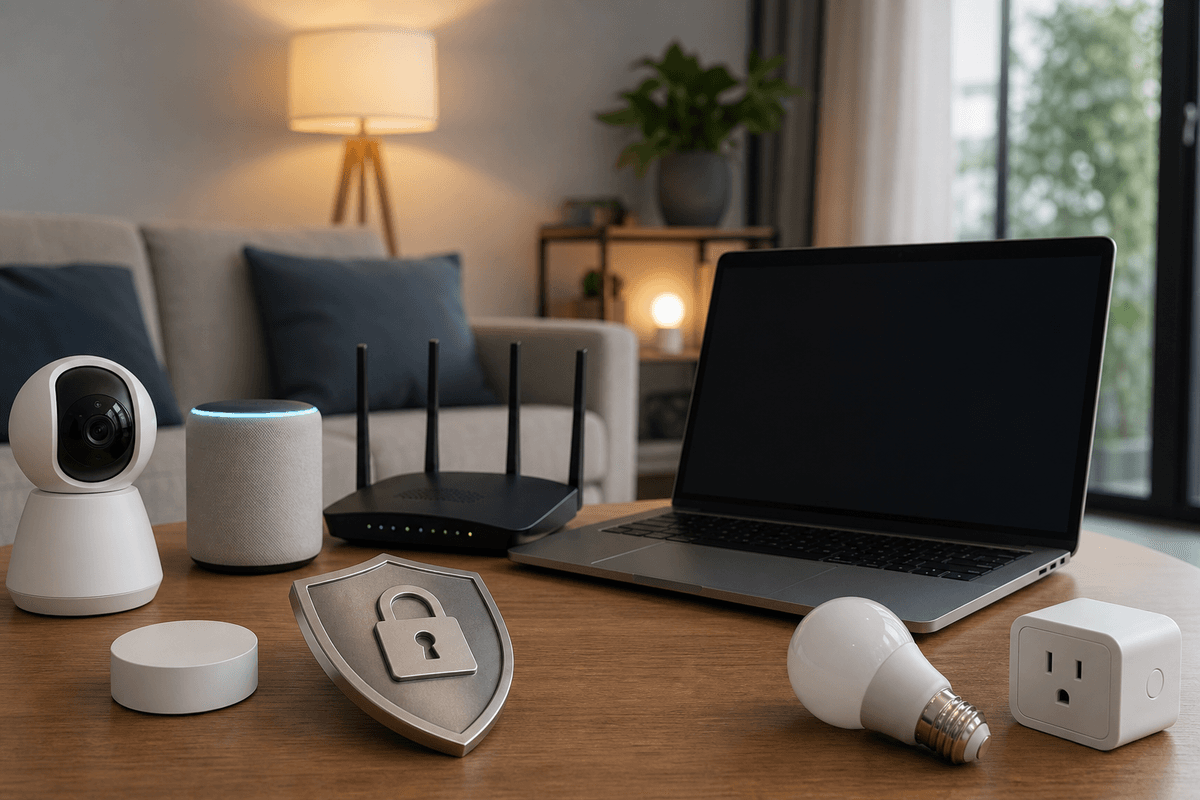

Home network security means locking down your router, Wi-Fi, and connected devices so that one compromised smart speaker or security camera can't become a door into your laptop, your bank accounts, or your client files. Every device in your house, from phones to thermostats, talks to the internet through the same router, which makes that router and its settings the actual security perimeter for everything you own.
According to Statista, the average household connected 22 devices to its home network in 2026, and phishing attacks aimed at home users are running at record levels. A hardened network won't stop every phishing email from landing in an inbox, but it limits what happens after someone clicks. This guide covers the controls that matter most: router hardening, Wi-Fi encryption, network segmentation, IoT isolation, DNS filtering, and ongoing monitoring.
Quick Answer
Home network security comes down to six controls: change your router's default admin password and update its firmware, turn on WPA3 (or WPA2-AES) encryption with a 16-plus character Wi-Fi passphrase, put smart home and IoT devices on a separate network from your computers and phones, filter DNS at the router level, disable remote management and unused features like UPnP and WPS, and review connected devices and logs regularly. Start with the router. It's the single control point for every device in your house.
Home Network Security by the Numbers
Your router is the most important security device in your home, because every byte of traffic between your devices and the internet passes through it. A compromised router gives an attacker visibility into everything you do online, the ability to redirect you to malicious sites, and a launching point for attacks on other networks.
Consumer routers ship configured for easy setup, not security. The admin password is often literally "admin" or printed on a sticker on the device. Firmware is frequently outdated within weeks of manufacture, and remote management is enabled by default on many models, exposing the admin panel to the open internet. According to CISA cybersecurity advisories published throughout 2025, compromised home routers have been folded into credential-stuffing campaigns, DDoS attacks, and ransomware delivery operations aimed at home-based businesses and remote workers. Our coverage of the EvoOo1Bot Linux botnet, which used compromised home routers as traffic relays, shows how quickly one unpatched router can become part of an attack infrastructure used against other victims.
Router Security Hardening Steps
Change the admin username and password
Replace factory defaults with a unique username and a password of 16-plus characters stored in a password manager. Factory credentials are publicly documented and trivially guessable.
Update firmware before connecting devices
Check the manufacturer's site or admin panel for the latest firmware and install it before adding any devices. See our <a href="/learn/patch-management">patch management guide</a> for a repeatable update routine.
Disable remote management
Turn this off unless you have an active need to reach the admin panel from outside your home network. Left on, it exposes the control interface to the internet.
Set Wi-Fi encryption to WPA3 or WPA2-AES
Select WPA3 if your router supports it, otherwise WPA2 with AES. Disable WEP and TKIP entirely; both are cryptographically broken and provide no real protection.
Create a separate network for IoT devices
Route smart TVs, speakers, thermostats, and cameras to a guest or secondary network so a compromised device can't reach your computers or files.
Enable logging and disable unused features
Turn on activity logging, and disable UPnP, WPS, and any remote access service you don't actively use.
WPA3, the current Wi-Fi security standard and now common on routers made after 2020, provides the strongest wireless protection available for home use. It replaces WPA2's Pre-Shared Key model with Simultaneous Authentication of Equals (SAE), which resists offline dictionary attacks and adds forward secrecy: even if someone later obtains your Wi-Fi password, they can't decrypt traffic they captured earlier.
If your router doesn't support WPA3, WPA2 with AES is acceptable but needs a strong passphrase, at least 16 characters, to compensate. Never use WPA or WEP; both can be cracked in minutes with freely available tools, and WEP was deprecated in 2004. Avoid personal information like names or birthdays in your passphrase since that data is often discoverable through public records or social media.
Home offices handling client data, including practices subject to the FTC Safeguards Rule, should consider 802.1X authentication, which assigns individual credentials to each user and device instead of one shared password. Our FTC Safeguards recordkeeping guide covers what documentation that rule expects from a home-based tax practice.
Network segmentation separates your home network into zones so a compromised device can't reach everything else you own. A smart thermostat on its own segment can't reach the laptop where you keep tax documents or the drive holding family photos. The NIST Cybersecurity Framework lists segmentation as a foundational control that applies at any scale, from corporate data centers to a home office.
At minimum, run two networks: a primary one for trusted devices like computers and phones, and a secondary one for IoT devices such as TVs, speakers, thermostats, and connected devices used by kids in the household. Larger households can add further zones: a segment for work computers handling client data, a filtered network for children's devices, or an isolated segment for security cameras that blocks them from reaching anything else on the network.
Home Network Security Checklist
- Change router admin username and password from factory defaults
- Update router firmware to the latest available version
- Enable WPA3 encryption, or WPA2-AES if WPA3 isn't supported
- Set a Wi-Fi passphrase of 16+ characters with no personal information
- Disable remote management and WPS on the router
- Create a separate network for all IoT and smart home devices
- Configure DNS filtering on the router (Quad9, Cloudflare for Families, or NextDNS)
- Enable router activity logging and alerts for new device connections
- Review the connected device list monthly and check for firmware updates quarterly
IoT devices are the weakest link on most home networks. Many ship with default passwords, receive infrequent firmware updates, and sometimes carry hardcoded credentials the owner can't change. The Mirai botnet, first identified in 2016 and still circulating in evolved forms, compromised hundreds of thousands of IoT devices using a list of roughly 60 factory-default username and password combinations, then used them to launch some of the largest DDoS attacks ever recorded. Ransomware operators target the same weakly secured devices as pivot points to reach higher-value targets once they're inside a network.
Putting IoT devices on a separate network segment is the single most effective control available, since you can't rely on the devices themselves to be secure. Beyond that, change every default password the device's app or web interface allows, and before buying a new connected device, check whether the manufacturer has a history of shipping regular firmware updates.
Key Takeaway
IoT devices are built for convenience, not security. Putting them on a dedicated network segment, separate from your computers and phones, is the highest-impact single step for limiting the damage if one of them is compromised.
DNS (Domain Name System) security blocks malicious domains before a device can connect to them, which matters because by default your router uses your internet provider's DNS servers, and those typically offer no filtering at all. When a phishing link is clicked or a browser gets redirected to a compromised site, DNS filtering can stop the connection before it completes, and it protects every device on the network at once, including smart TVs and IoT gadgets that can't run security software of their own.
Configure DNS filtering directly on the router so every device benefits automatically, and add a firewall rule blocking outbound DNS traffic to any server besides your chosen provider; this stops malware with hardcoded DNS servers from bypassing the filter. DNS over HTTPS (DoH) and DNS over TLS (DoT) encrypt the query itself, keeping your internet provider from seeing which domains you look up.
Unpatched Routers Are Active Targets
CISA and the FBI have issued advisories warning that threat actors actively scan for routers running default credentials and unpatched firmware. Compromised routers get folded into botnets used for DDoS attacks, credential stuffing, and ransomware delivery, often without the owner noticing. If you haven't changed your router's admin credentials or checked for firmware updates in the past 12 months, do it today.
A few additional controls are worth it for home offices handling sensitive client data or anyone with an elevated personal threat profile. For remote access into your home network, use a self-hosted VPN like WireGuard rather than exposing a service directly to the internet through port forwarding; a commercial VPN service protects your traffic on public Wi-Fi but doesn't secure remote access into your home network, so the two solve different problems. Intrusion detection tools such as Suricata or Snort, which can run on a Raspberry Pi, watch traffic for port scans, exploit attempts, and botnet command-and-control activity. MAC address filtering raises the bar for casual attackers, though a determined one can spoof a MAC address, so treat it as one layer, not a standalone control.
Turn on router logging and review it monthly for failed logins, unusual outbound connections, or devices active at odd hours. Set alerts for new devices joining the network and for changes to router configuration; the goal is finding out within hours, not weeks. If you find a compromised device, disconnect it immediately, change your Wi-Fi and admin passwords, and check other devices for signs of lateral movement. For a deeper compromise, do a full reset: new credentials, a firmware update, and a re-check of every security setting.
Endpoint protection on individual devices is a separate, equally necessary layer. Home-based businesses that need that coverage without building an in-house security team can look at Bellator Core, which bundles managed EDR, remote monitoring, and Ransomware Rollback for $33 per computer per month. Professionals working from home under the FTC Safeguards Rule or the HIPAA Security Rule should also make sure their home network documentation covers the access controls, encryption, and incident response steps those rules expect; a home office with weak network controls can create a documentation gap during a compliance review. This isn't legal advice, so route specific compliance questions to counsel.
Talk with a cybersecurity expert
Get a personal cybersecurity assessment that reviews your router configuration, network segmentation, and connected devices.
Frequently Asked Questions
Home network security is the set of configurations and practices that protect your router, Wi-Fi, and every connected device from unauthorized access and interception. Every device in the house, phones, laptops, smart TVs, cameras, communicates through the same router, so that router is the shared attack surface for everything you own. A compromised network can expose banking credentials, enable eavesdropping on video calls, or turn your equipment into tools used against others.
WPA2 uses a Pre-Shared Key model vulnerable to offline dictionary attacks, meaning an attacker who captures your Wi-Fi handshake can try to crack the password without staying connected to your network. WPA3 replaces that with Simultaneous Authentication of Equals (SAE), which blocks offline attacks and adds forward secrecy, so traffic captured today stays unreadable even if your password leaks later. Use WPA3 if your router supports it; otherwise use WPA2 with AES and a passphrase of at least 16 characters.
Warning signs include unfamiliar devices in your router's connected device list, slower internet speeds with no clear cause, an admin password that no longer works, DNS settings that changed without your input, and unusual outbound connections in router logs. Some compromises show no visible signs at the device level, which is why router logging and new-device alerts matter. If you suspect a compromise, review recent logs and reset your firmware and credentials as a precaution.
Any device that isn't a computer, phone, or tablet you use for sensitive tasks belongs on a separate network: smart TVs, streaming boxes, smart speakers, robot vacuums, thermostats, smart locks, security cameras, baby monitors, gaming consoles, and smart appliances. If a device doesn't need access to your files or accounts to work, isolating it limits the damage if it's ever compromised. Most routers support this through a guest network feature.
It depends on your priorities. Quad9 is free, nonprofit-operated, and blocks malware and phishing domains using threat intelligence from more than 20 partners, a solid default for most households. Cloudflare for Families is also free and emphasizes speed with support for encrypted DNS. NextDNS costs a small monthly fee but gives you custom blocklists and per-device rules if you want more control.
Start with the concern that matters most
Make your accounts, devices, or family safer one clear step at a time
You do not need to change everything today. Choose the account, device, scam, or family concern that brought you here and fix the highest-impact opening first.
People also look for
Keep exploring Identity & personal security
Protect personal accounts, devices, finances, and family members with understandable steps that can be maintained.
- Common question: identity theft protectionUse the identity theft guideReduce exposure, recognize warning signs, and know what to do if identity data is misused.
- Common question: how to protect your digital identityProtect your digital identitySecure the accounts and recovery channels that connect your online life.
- Common question: personal device securitySecure phones, laptops, and tabletsApply updates, encryption, endpoint protection, and safer device settings.
- Common question: online safety for kidsBuild safer habits for children and teensBalance privacy, account security, communication, and age-appropriate supervision.
- Common question: cybersecurity for seniorsHelp older adults avoid common scamsPrepare for impersonation, tech-support fraud, phishing, and account takeover attempts.